Product Image Size Checker for Google Merchant Center
A free WordPress plugin that measures every product image your shop sends to Google, lists the ones under 500 × 500 px and finds the larger original when it is already on the server. It writes nothing back.
From 31 January 2027 Google Merchant Center wants every product image to be at least
500 × 500 px: the main image (image_link) and the additional ones (additional_image_link).
Until then the minimum is 100 × 100 px, or 250 × 250 px for apparel. Merchant Center already shows
Image too small for upcoming enforcement on offers whose images fall short, and after the
deadline Google may reject such an image or replace it with an enlarged copy. The dates and the
warnings in detail: Google Merchant Center image size.
A shop that has been adding products for years can have hundreds of such images and no way to see them. The WordPress admin shows every picture as the same neat thumbnail.
What it checks
| Image | Why this one |
|---|---|
| The main image of every published product | it goes to Google as image_link |
| The own image of every variation | a variation with an image of its own sends that one |
| Gallery images, up to 10 per product | Google takes up to 10 additional images; the 11th and later never reach it |
| The first gallery image, when a product has no main image | Google for WooCommerce sends that one as the main image |
The size is read from the image file itself, the full-size file that feed plugins send to Google, not from the thumbnail the admin displays. Drafts and private products are skipped: they do not go to Google.
A verdict for every product
Each product with a problem gets one verdict, and the verdict says how much work it is:
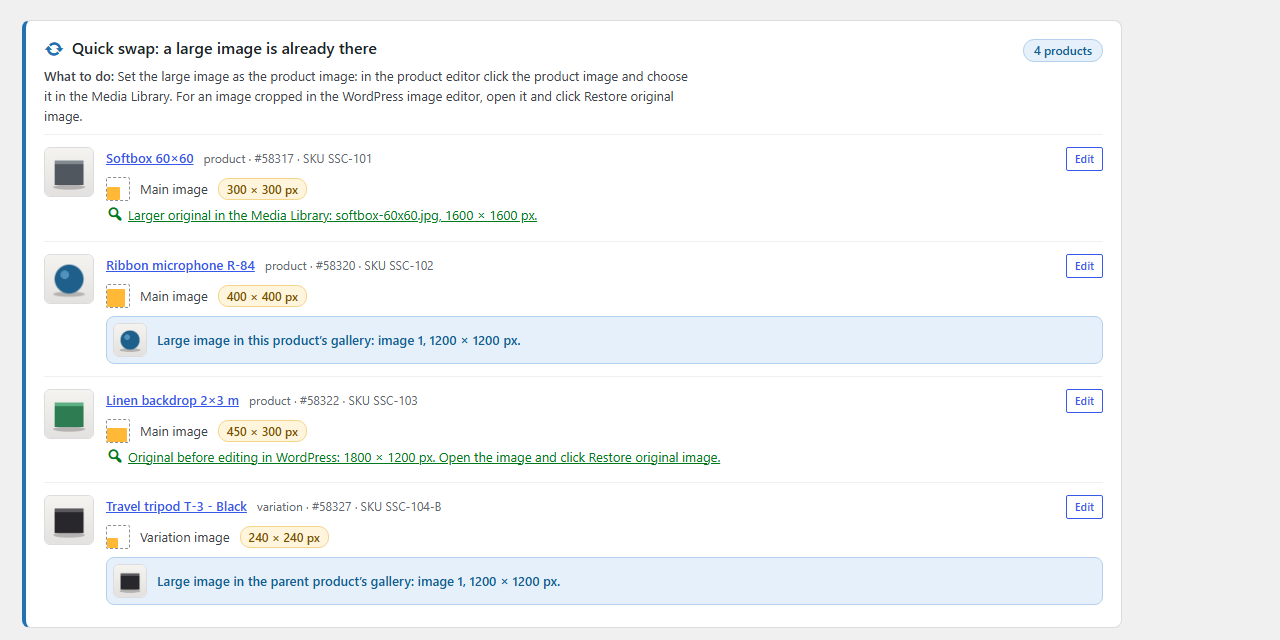
- Quick swap — the main image is too small, but a large one is already there, in the product gallery or on the server. Setting it as the product image takes a minute.
- New photo needed — the main image is too small and there is no larger one anywhere.
- Small gallery images — the main image is fine, but some gallery images are under 500 × 500 px. Replace them or remove them from the gallery.
- Not checked — the size of an image could not be read, so the plugin does not guess. The reason is named: the file is not on this server (for example images offloaded to S3 or a CDN), the file is empty, or its format has no size PHP can read (SVG, or AVIF on older PHP).
Images under 100 × 100 px are marked separately, because Merchant Center rejects those already today.
Larger originals already on the server
Very often a small product image is a thumbnail — a file whose name ends in -300x300 — that was
uploaded or imported as an image of its own, while the full picture is still there. Before a product
lands under New photo needed, the plugin looks for:
- a large image in the product’s own gallery, and for a variation in the gallery of its parent product;
- the full image with the same name in the Media Library;
- the full image as a file in the same folder, outside the Media Library;
- the untouched original WordPress keeps after an image was cropped in its image editor (“Restore original image”).
Wherever it finds one, it says where it is and how large it is.
What the result looks like
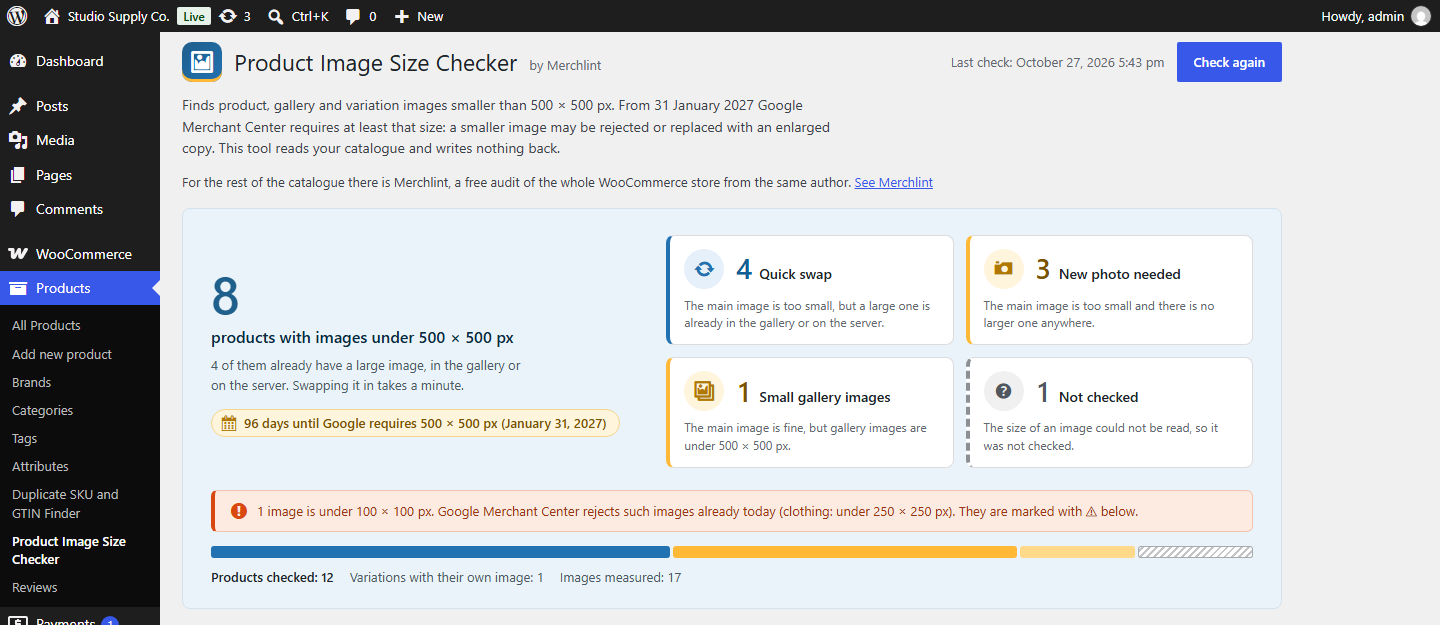
The plugin adds one screen under Products → Product Image Size Checker; the Check image sizes link next to the plugin on the Plugins screen opens it too. At the top: how many products need attention, how many of them only need a swap, and the days left until 31 January 2027. Below, a card for each verdict lists the products with thumbnails, the size read for each image, where the larger image is, and a link straight to the product in your admin.
Download CSV gives you one row for every image that is too small or could not be read: product,
SKU, which image it is, its size, the verdict and where the larger image is. The file is
semicolon-separated, so it opens in Excel and Google Sheets, and cells are protected against
spreadsheet formula injection. Verdicts are fixed codes in English (quick_swap, new_photo), so a
filter works the same way in every shop.
What it does not do
- It never changes your products or images. There is no “Fix” button and no automatic replacement — the reasoning is here. It stores the last result in one option, so reloading the page needs no new check, and up to three marks per user that keep closed things closed: the notice on the Plugins screen, the box about Merchlint and the review request. Deleting the plugin removes the option and all the marks.
- It does not enlarge images. An enlarged small picture gets bigger, not sharper. Google recommends about 1500 × 1500 px.
- It does not read your feed. It checks the full-size file. If your feed plugin is set to send a smaller image size, Google gets that smaller image, however large the original is.
- No paid version. Outside its own screen, the plugin shows one notice on the Plugins screen after activation, saying where the screen is; it goes away for good once you dismiss it or open the screen.
Large catalogues
The screen runs the check in a single request, and on a very large store that can hit your host’s time limit. Above 5,000 published products and variations the screen says so before you start. The WP-CLI command has no such limit:
wp merchlint-product-image-size-checker scan
wp merchlint-product-image-size-checker scan --export=images.csv
It prints how many products fall under each verdict and saves the result, so the full list is
waiting on the screen afterwards. --export also writes the CSV file.
Requirements
| WordPress | 6.5 or newer |
| WooCommerce | 9.0 or newer |
| PHP | 7.4 or newer |
| Image files | on this server; offloaded images are listed as Not checked |
| Licence | GPL-2.0-or-later, free |
Questions
What does “Image too small for upcoming enforcement” mean?
It is a warning in Google Merchant Center: the image of this offer is smaller than 500 × 500 px, the minimum Google applies to all products from 31 January 2027. Until then the old minimum applies: 100 × 100 px, or 250 × 250 px for apparel. The rules are on Google’s help page for the image_link attribute.
Merchant Center lists these products under Needs attention, but it knows only the products already in your feed and only the image the feed sent. The plugin looks at the shop itself, gallery included. Where to find the warning, and the second one Google shows next to it: Image too small for upcoming enforcement.
Does Google for WooCommerce show this warning?
It can, but only after the products have been sent to Google. Google for WooCommerce lists the issues that Merchant Center reports for your products in the Issues to resolve card on its Product Feed page. Before sending, it checks that the image link is valid, not how large the image is. If there is any error in that list, for any product or for the account, the card shows only the errors, and warnings like this one are not listed. The plugin gives you the list before anything is sent: which image it is (main, gallery or variation), its size, and a larger original if there is one. This describes Google for WooCommerce 3.9.6.
Will Google reject every image the plugin lists?
Not necessarily. Google says it will optimise some images smaller than 500 × 500 px automatically, and it does not say which. A listed image may be rejected or replaced with an enlarged copy. Images under 100 × 100 px are rejected already today; the plugin marks them separately.
My original image is large, but Merchant Center still says it is too small.
The plugin checks the full-size file. Some feed plugins let you choose which image size goes into the feed; if yours sends a smaller size, Google gets that smaller image. Set the feed to the full size.
Can I check my images without installing anything?
The main images, yes. The free store check reads them from your shop’s public catalogue and lists the ones under 500 × 500 px. It does not see gallery images or files on the server, and an image whose size the public data does not settle is not counted. For one image at a time, Media → Library shows the dimensions in the attachment details.
Where to get it
The plugin is in the WordPress.org plugin directory as Merchlint – Product Image Size Checker for Google Merchant Center and installs from Plugins → Add Plugin like any other. Questions and problems go to its support forum on WordPress.org, or to contact.
Where the engine comes from
The scanning engine is the one behind Merchlint, a full WooCommerce catalogue audit from the same author, Baltano. This plugin carries its own copy under its own class names, so the two can run side by side on one store. It is the second small plugin of this kind, after the Duplicate SKU and GTIN Finder. If you want the rest of the catalogue checked too — products that can no longer be bought, missing prices, duplicate SKUs, sale prices that should have ended — that is what Merchlint is for. Since version 0.3.9 Merchlint also reports main and variation images under 500 × 500 px (Photo too small for Google); this plugin adds the gallery, a verdict for each product and the search for a larger original.